Step-by-step plan
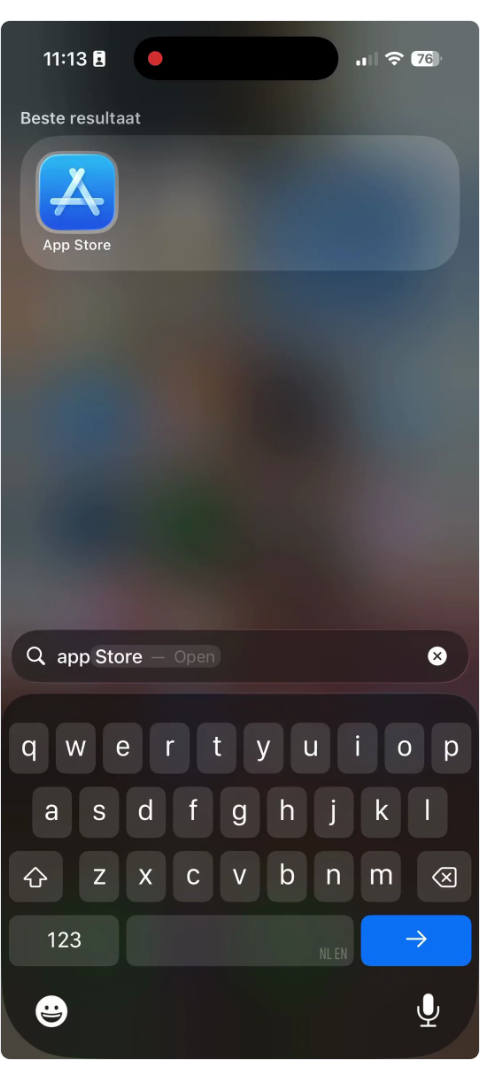
- Open the App Store on your iPhone.
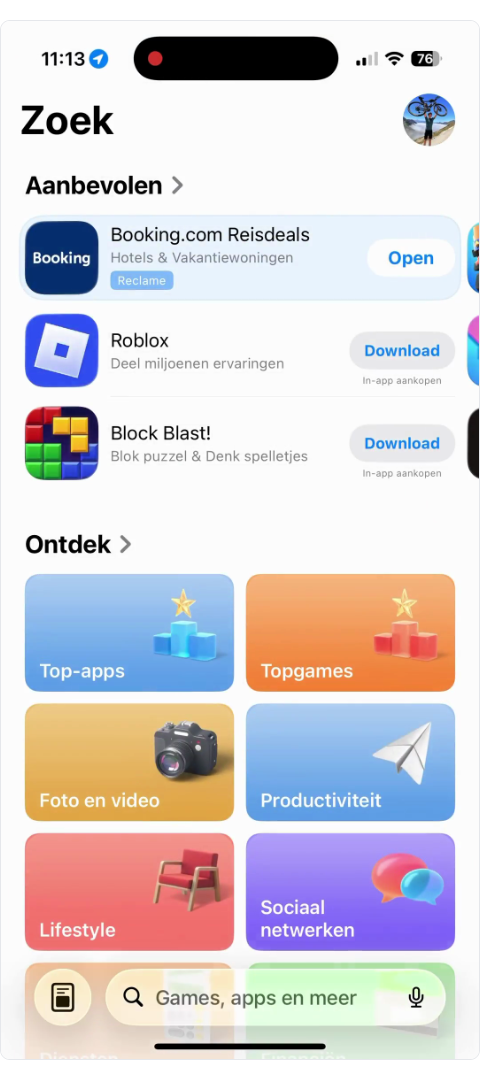
- Tap the search field, type Authenticator and press search.
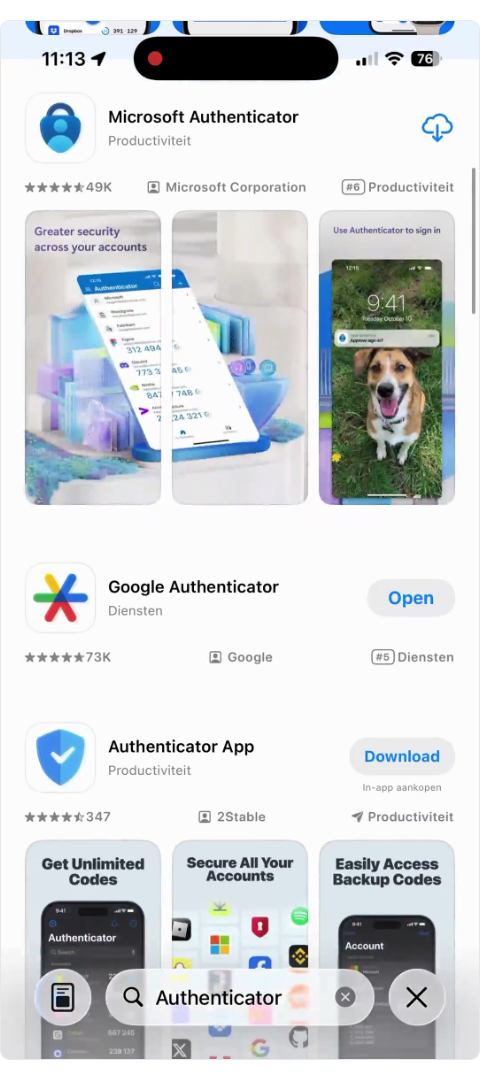
- Choose the Microsoft Authenticator app.
- Note: It is important that the name is exactly the same.
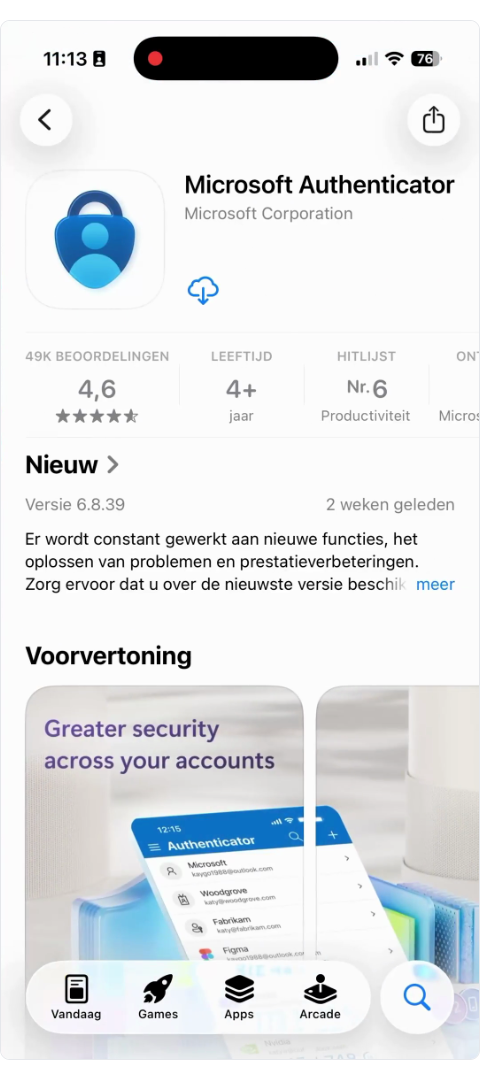
- Download the app by tapping the cloud icon or Download.
- Does it say 'Open'? Then you already have the app and can open it directly.
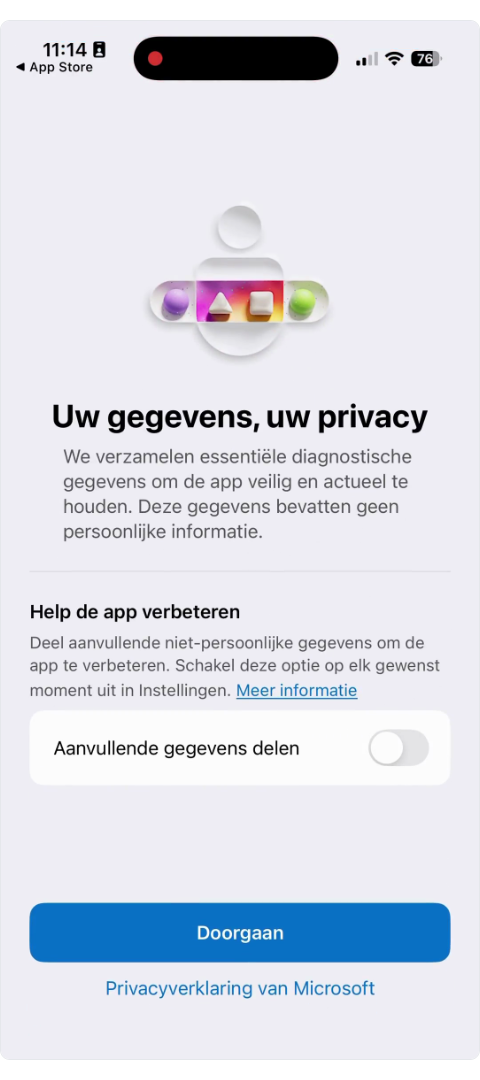
- Open the app and click Continue to accept the privacy terms.
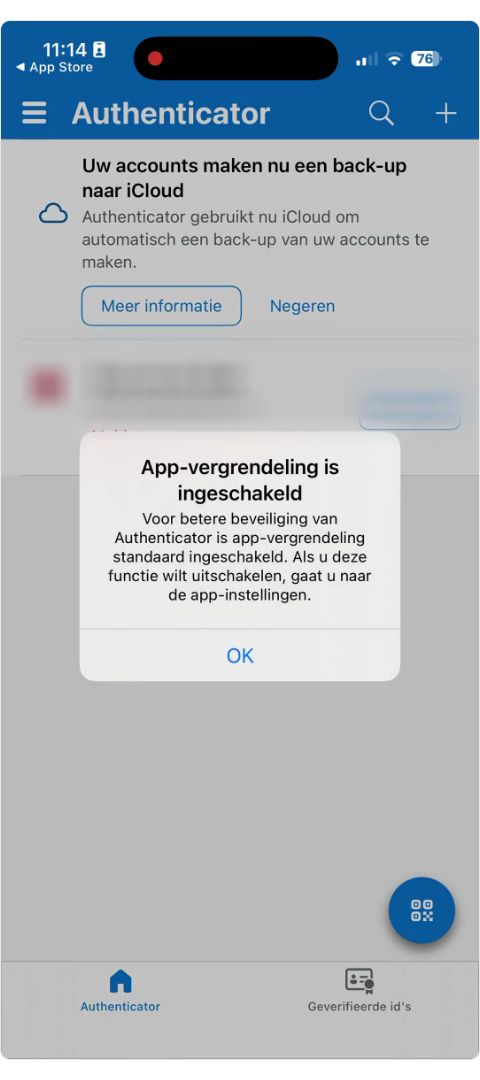
- Click OK if the message 'App lock is enabled' appears.
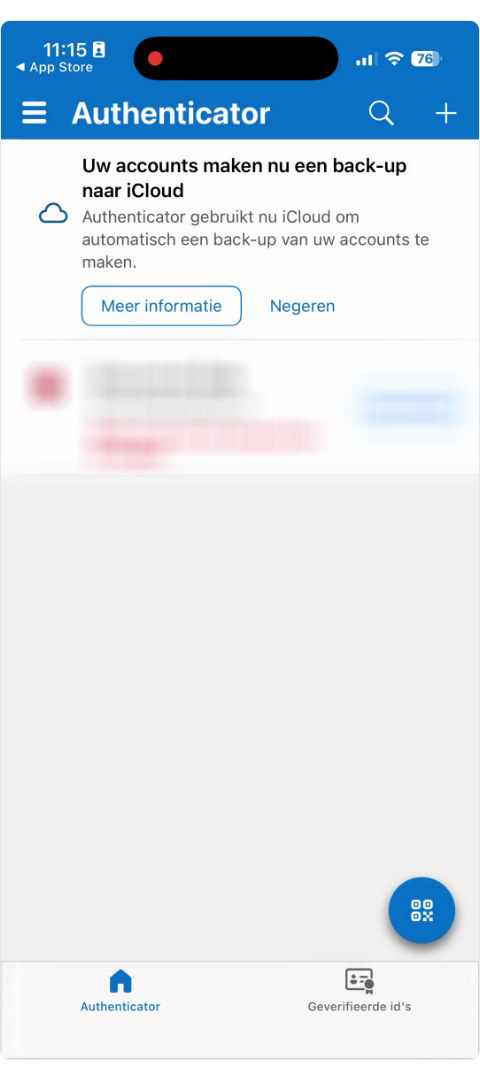
- Now press the icon with the QR code in the app (or the plus sign to add an account).
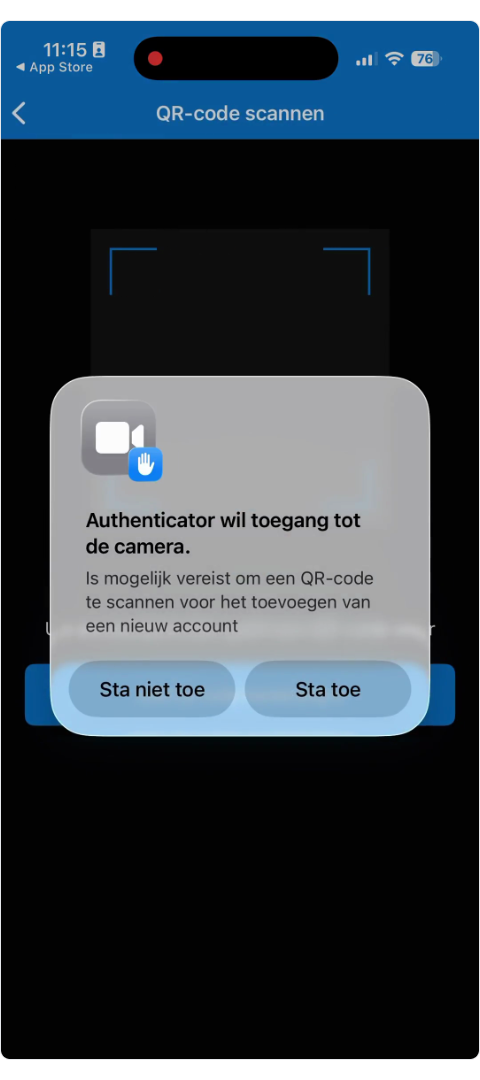
- Click Allow to give the app access to your camera.
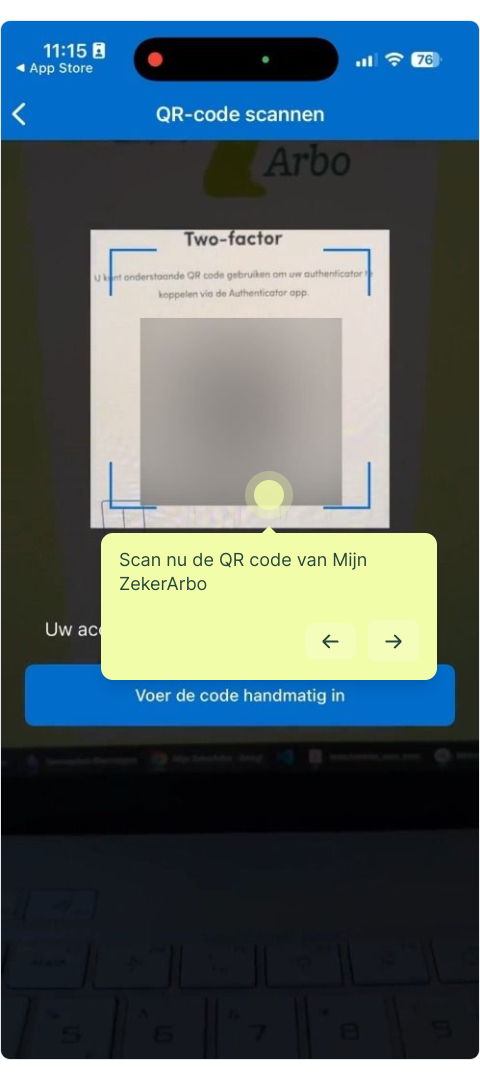
- Use your phone to scan the QR code displayed on your computer screen in Mijn ZekerArbo.
- The app will now display a 6-digit code that changes every 30 seconds.
You have now successfully set up two-step verification (2FA)!
View an interactive video demo here!
1. Open the 'App Store' on your iPhone (or iPad)
2. Click the search field, type 'Authenticator' and press the search icon
3. Open 'Microsoft Authenticator '_It is important that the name of the app is exactly the same as 'Microsoft Authenticator'_
4. Download the app by pressing the 'cloud icon'. Does it say 'open'? Then you already have the app installed and can press 'open'
5. Click 'continue' to accept the privacy terms
6. Click 'OK' when the message 'App lock is enabled' appears
7. Press the icon with the 'QR code'This allows you to scan the QR code displayed in Mijn ZekerArbo
8. Click 'Allow' to give the app access to your camera
9. Now scan the QR code from Mijn ZekerArbo
10. The authenticator code will now appear on your screen; it changes every 30 seconds
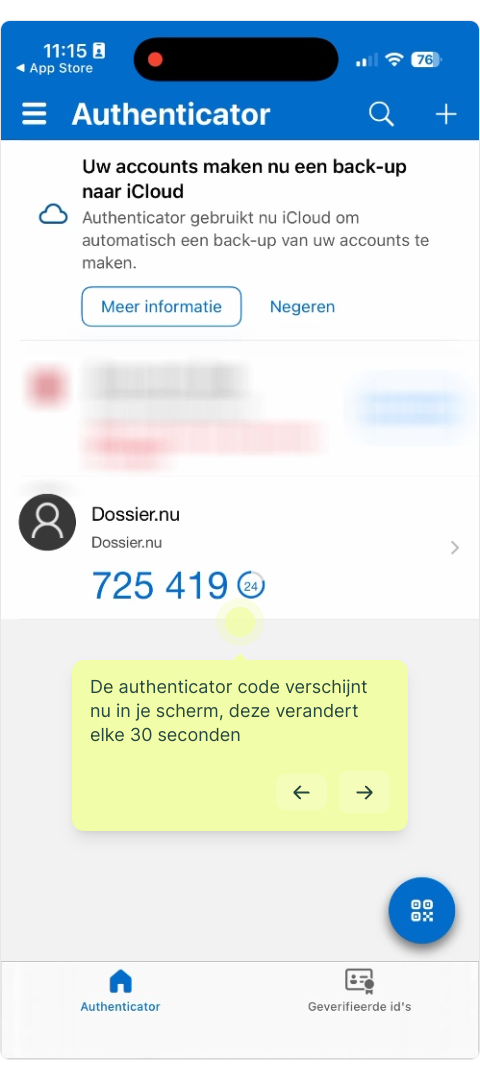
11. You have now set up two-factor authentication (2FA)!
####
####